| Pioneer | Visible |
| Expert | Visible |
| Simplified | Hidden |
| Management | Hidden |
| Business | Hidden |
Threats Manager Studio (TMS) provides a flexible approach to metadata. Most objects defined, including Entities, Flows, Threats and Mitigations, do support initially a very limited set of information. All objects have a Name and a Description. Some have associated Threat Events, others associated Threat Types or Mitigations, and so on. This design choice is a result of the Requirement of providing a platform that could be easily applied to different methodologies and contexts. For example, Microsoft’s traditional Threat Modeling methodology does require Threats to be categorized using the STRIDE approach. So, it would be natural to support this approach by default, with a property called STRIDE category. But what if your process is different? What if, for example, you need to classify them using CAPEC?
TMS provides a way to extend the metadata through the concept of Property Schemas. To access them, you have to open the View ribbon and click on Property Schema List.
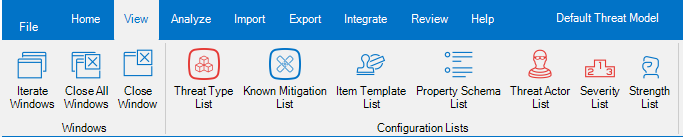
This will open the Property Schema List tool.

Property Schemas are collections of Properties. They are associated to a Scope and have some configuration values that determine how they are applied.
The Property Schema List tool is split in two parts: the upper section shows the details of the Property Schema, including its configuration values. The lower part instead shows the details about its Properties.
After you select a Property Schema from the aptly named combo box placed at the top of the page, you will see its details.
The properties of the Property Schema, are:
- Name of the Property Schema. It is required.
- Namespace, which can be anything, not necessarily a URL. With the Name, it defines uniquely the Property Schema. It is required.
- Description of the Property Schema.
- Applies To defines the scope, that is which objects the Property Schema can be applied to.
- Priority is for presentation purposes: the Item Editor uses this information to decide which Property Schema to show first. Lower values indicate higher priorities.
- Apply Automatically is a flag that forces the Property Schema to be applied automatically to all new instances of the specific object. Existing instances will be unaffected.
- Required Execution Mode indicates the minimum Execution Mode for the Property Schema. If for example it is set to Simplified, then the Property Schema will be hidden when the Execution Mode is Management of Business.
- Visible is a flag to hide the Property Schema from the Item Editor independently from the Execution Mode.
- System is a flag that characterizes Property Schemas managed by TMS or by its Extensions, and that cannot be managed via the Property Schema List tool. When this flag is set, it will not be normally possible for a user to modify the Property Schema.
Property Schema is a container of Properties. Each property has various configuration values which characterize it:
- Name of the Property. It is required.
- Description of the Property.
- Property Type, which describes its behavior. This is the list of the supported Property Types.
| Property Type Name | Description | Can be created by user? |
|---|---|---|
| Single Line String | A text in a single line. | Yes |
| String | A text that can be split on multiple lines. | Yes |
| Boolean | A boolean value. | Yes |
| Integer | An integer value. | Yes |
| Decimal | A decimal number. | Yes |
| List of keywords | A list of keywords to be chosen by the user. | Yes |
| Single item selected from a list | Allows specifying in column List of Values the allowed values, which will be shown in a combo box. The user will have to choose one of those values. | Yes |
| Multiple items selected from a list | Allows specifying in column List of Values the allowed values, which will be shown in a combo box. The user will be able to choose one or more of those values. | No |
| Array of strings | A list of strings. | Yes |
| Complex object serialized as Json | An object, serialized inside the Threat Model as Json. Those properties require an Extension to manage them. | No |
| Reference to another object | A reference to another object. | No |
- Priority, which allows to sort the Properties as desired: in fact, they are normally shown based on the order of insertion. By changing the Priority, it is possible to change the normal order. The lower is the value, the higher the priority.
- Visible allows to hide a specific Property.
- List of Values is used by Properties having Property Type Single item selected from a list and Multiple items selected from a list to define the list of allowed values.
The Property List Ribbon provides actions used to work with Property Schemas.
- Add Property Schemas allows to add a new Property Schema. It shows a form to specify the name, namespace and optionally the description, and then creates it.
- Add Property to the current schema. It fails if the Property Schema is flagged as System.
- Remove Property Schema, allows removing the current Property Schema. It fails if the Property Schema is flagged as System.
- Remove Selected Properties, allows removing the selected properties of the current Property Schema. It fails if the Property Schema is flagged as System.
- Apply Schema, allows applying the current schema to the existing objects.
- Import Schemas allows importing some Property Schemas from a Template.
- Export Schemas allows creating a Template with only the selected Property Schemas.
- Get Full Rights allows you to perform activities that would be normally prevented, like removing a Property Schema flagged as System.
ATTENTION
Get Full Rights must be used only as a last resort, after having saved the Threat Model, because it could potentially compromise the integrity of the Threat Model.
- Refresh List allows to reload the list of Property Schemas. It may be necessary if the Property Schema List was open when a Template was imported.
 Threats Manager Studio